Graphics
Basic Inglenook Puzzle simulator display. Buttons to quit/abort the puzzle run or change the train speed are not shown below.

When in the manual mode, the following is displayed in the upper right corner of the screen to enter individual moves.

To enter a simulator move, select options, left to right, to complete the sentence "Move to|from siding 1|2|3, 1|2|3 boxcars" by clicking the appropriate light-gray ball. When a complete move is selected the "Execute" button changes from dark-gray to light-gray and can be clicked to execute the move. The dark-gray options are not valid for the current state of the simulator or move options entered. For example, looking at the two images above:
- "Move to" a siding is not available because there are no boxcars on the head shunt, for the loco, to "move to" a siding.
- "Siding 1" is not available because there are on boxcars on siding 1, so you could not move boxcar(s) from siding 1.
As a new move is entered the screen options are updated. When there is only one valid option available, it is automatically selected, turned green. 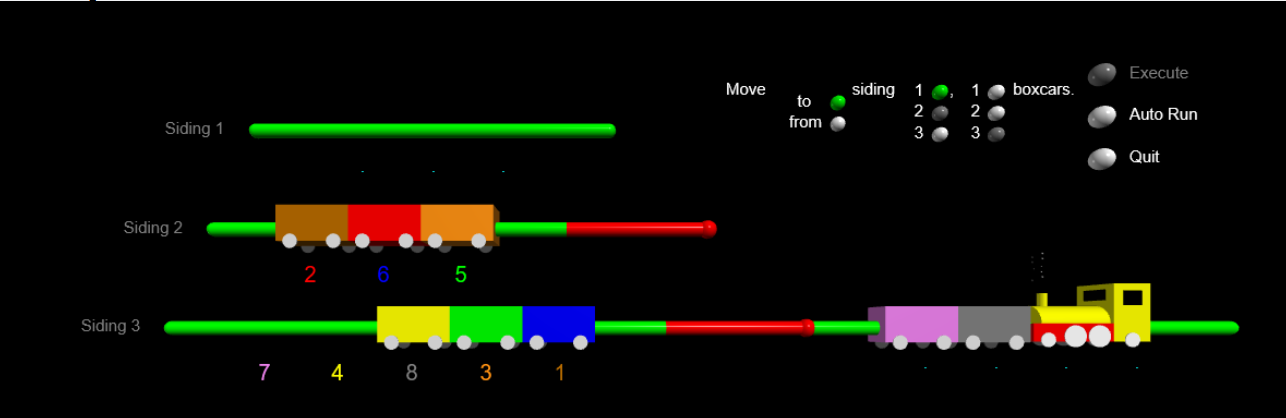
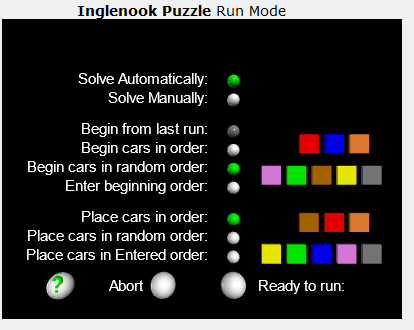
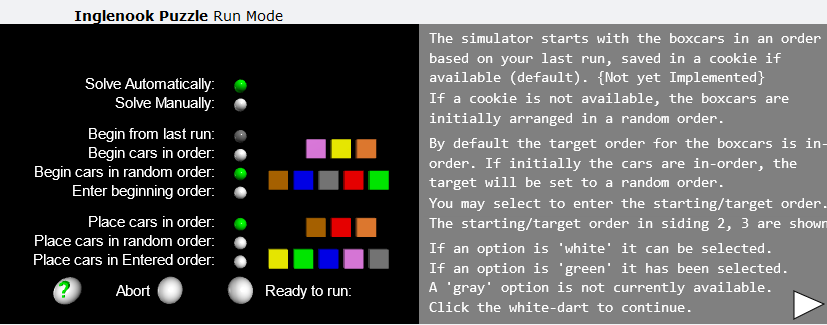
To make the setup of the simulator 'user friendly' the following is the first screen displayed to setup the initial conditions for the Inglenook puzzle simulator.
On this screen you can:
- Select automatic or manual mode to solve the puzzle.
- Select the starting order of the eight boxcars on siding 2 and 3.
- Select the boxcar order to solve the puzzle.
- Open a help window.
- Abort the run and exit the simulator..
- Run the simulator solving the puzzle as you have configured.
When you have finished with the help window be sure to click the white dart in the lower right of the gray help window.
When changing the order of the boxcars a message may be displayed. There may also be a white dart displayed so you have time to understand the message. After reading the message, again just click the dart.
The following is how the help screen is displayed.